01
Install the extension
Add Claudafinil to Chrome. It lives beside the AI chats you already use, so there is no separate workspace to keep in sync.
How Claudafinil works
Start with a visual map of your AI conversation. Then save the prompt, capture the useful answer, share the workflow with your team, or publish the prompt for someone else to discover.
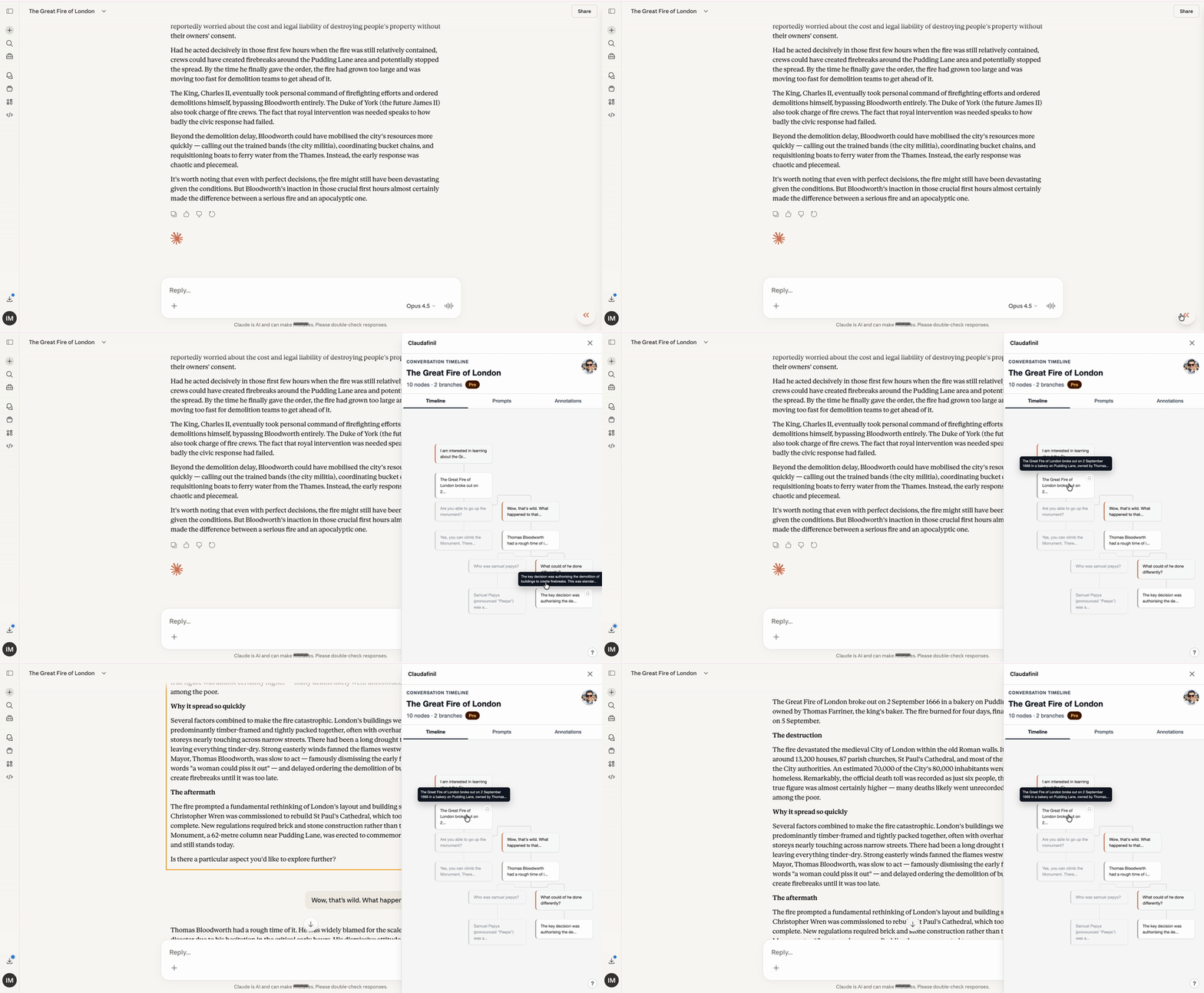
01
Add Claudafinil to Chrome. It lives beside the AI chats you already use, so there is no separate workspace to keep in sync.
02
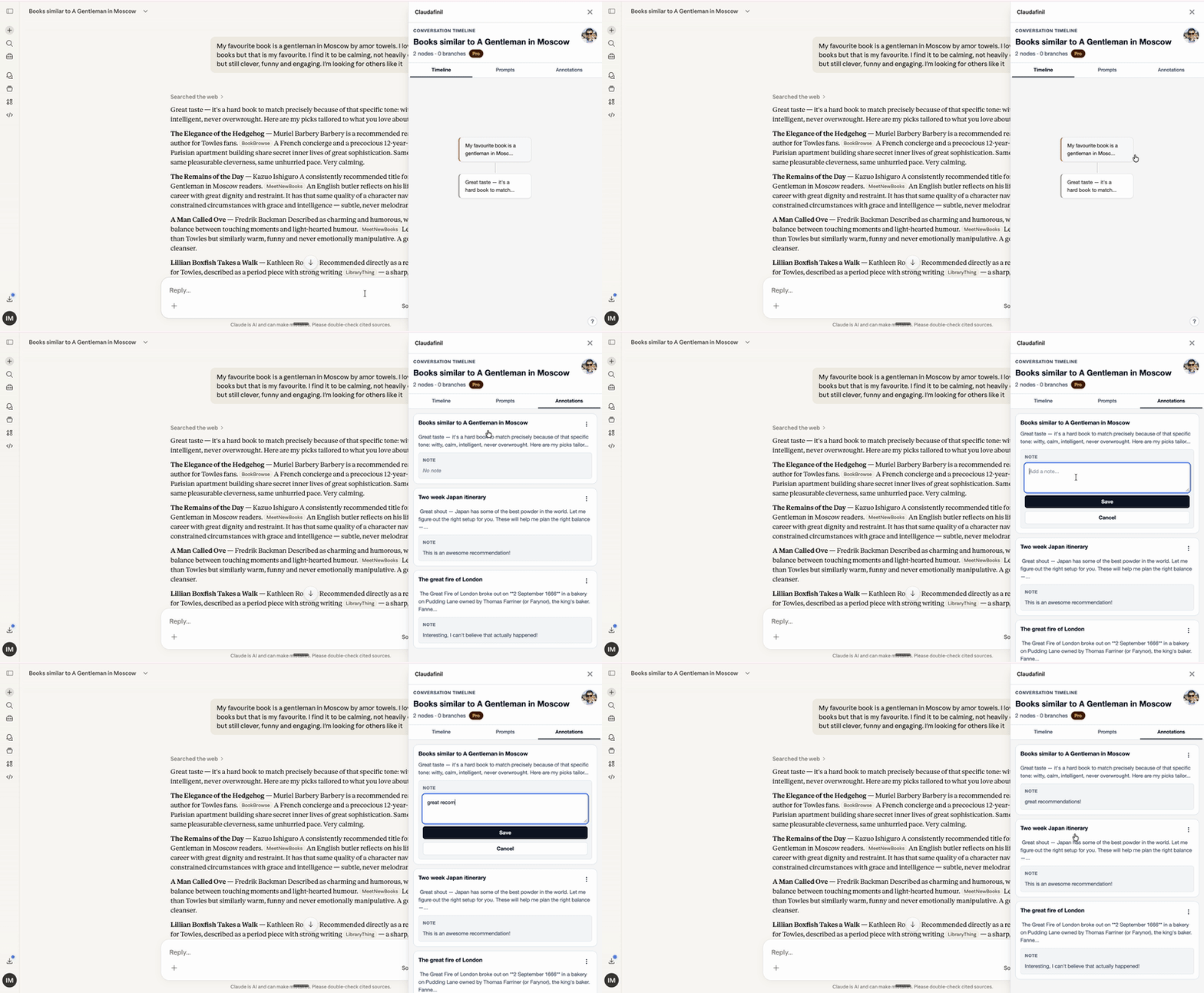
Start from a real conversation. The drawer opens with timeline, prompts, and annotations available in one place.
03
Click conversation branches, insert saved prompts, bookmark useful assistant messages, and keep building from there.
Product journey
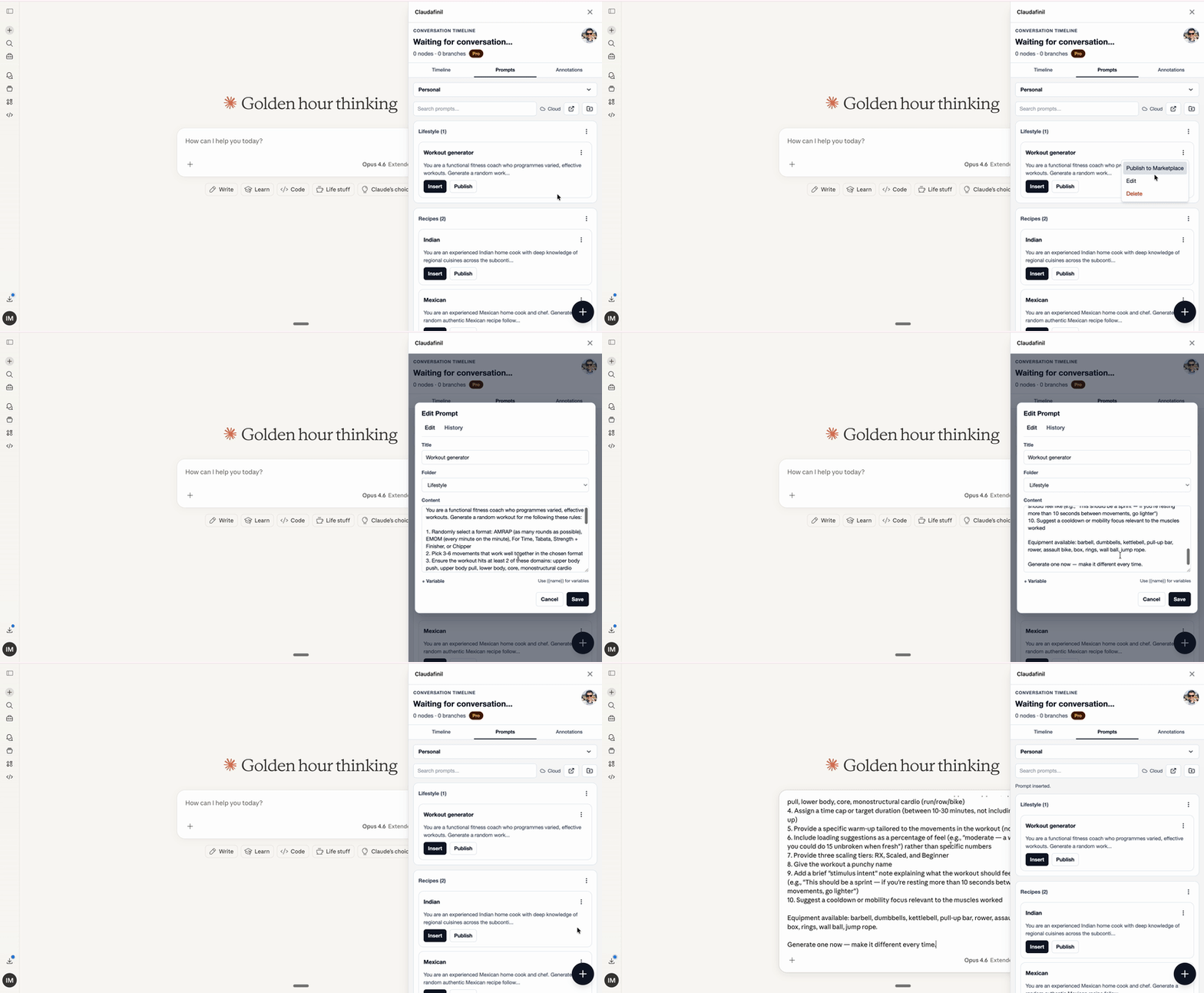
Store prompts
Save prompts with titles and full content, search across them, edit the ones that improve, and insert a saved prompt directly into the active chat. Free libraries are local-first; signed-in Pro libraries can sync through the cloud.
Use variables
Write templates with variables like {{topic}}.
When you insert that prompt, Claudafinil asks for the values,
resolves the text, and sends the completed version to the chat input.
Example template
Create a concise research brief about {{topic | What should the brief cover?}} for {{audience:product leaders}}.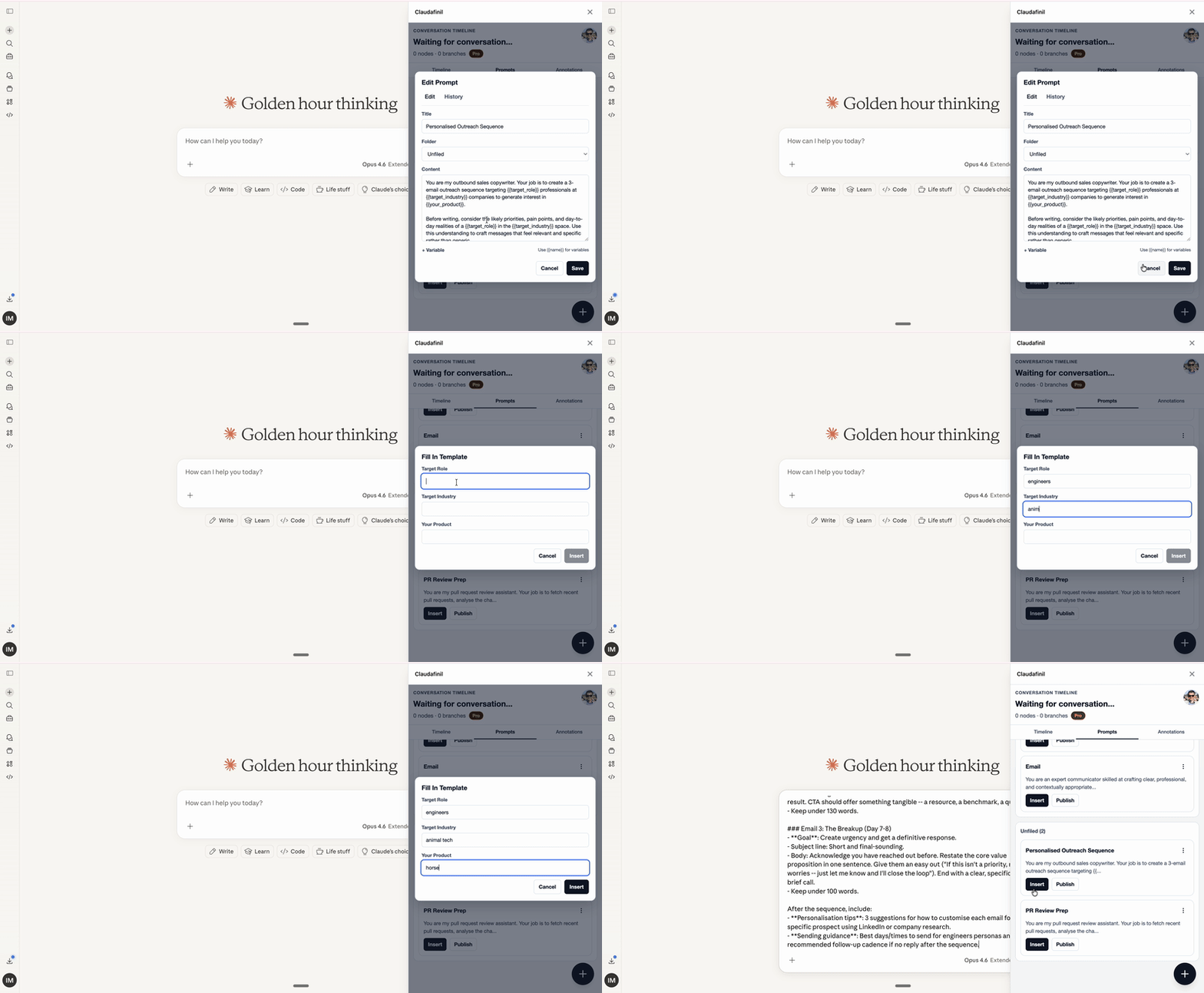
Organize folders
Create folders for roles, projects, clients, or recurring workflows. Folder sections keep big libraries scannable, while search still works across the full prompt library.
Common folder starting points
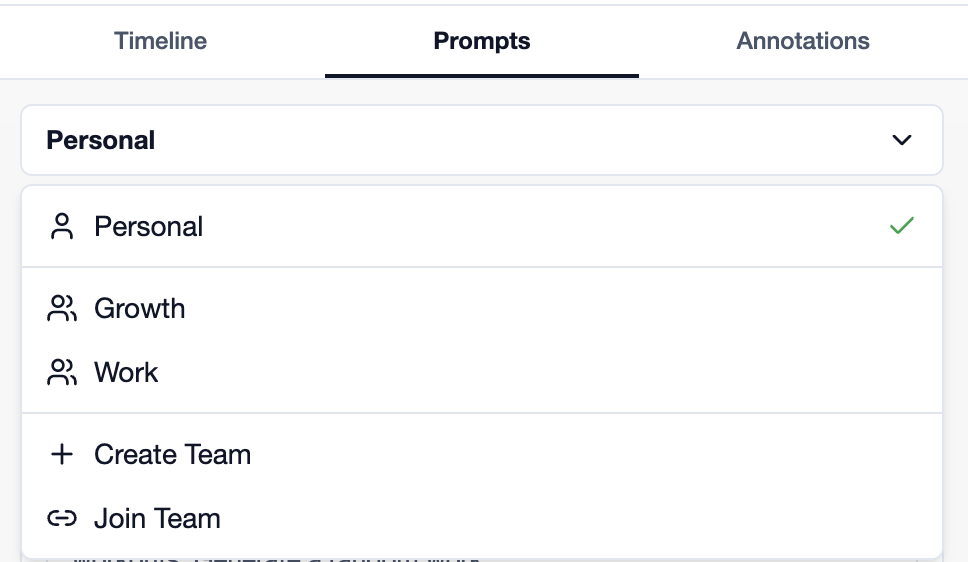
Work with teams
Pro users can create or join team workspaces, then collaborate on shared prompts and folders. Use the workspace selector to move between Personal and team libraries before you create, edit, or insert.
Save annotations
Bookmark assistant messages from the timeline, add your own note in the Annotations tab, then reopen that conversation later and jump back to the saved response.
Use the marketplace
Browse the public catalogue, inspect the full prompt text, search by domain, vote on prompts that work, and save useful prompts into your personal cloud library where eligible. Pro publishers can also submit prompts from their own library.
Browse marketplace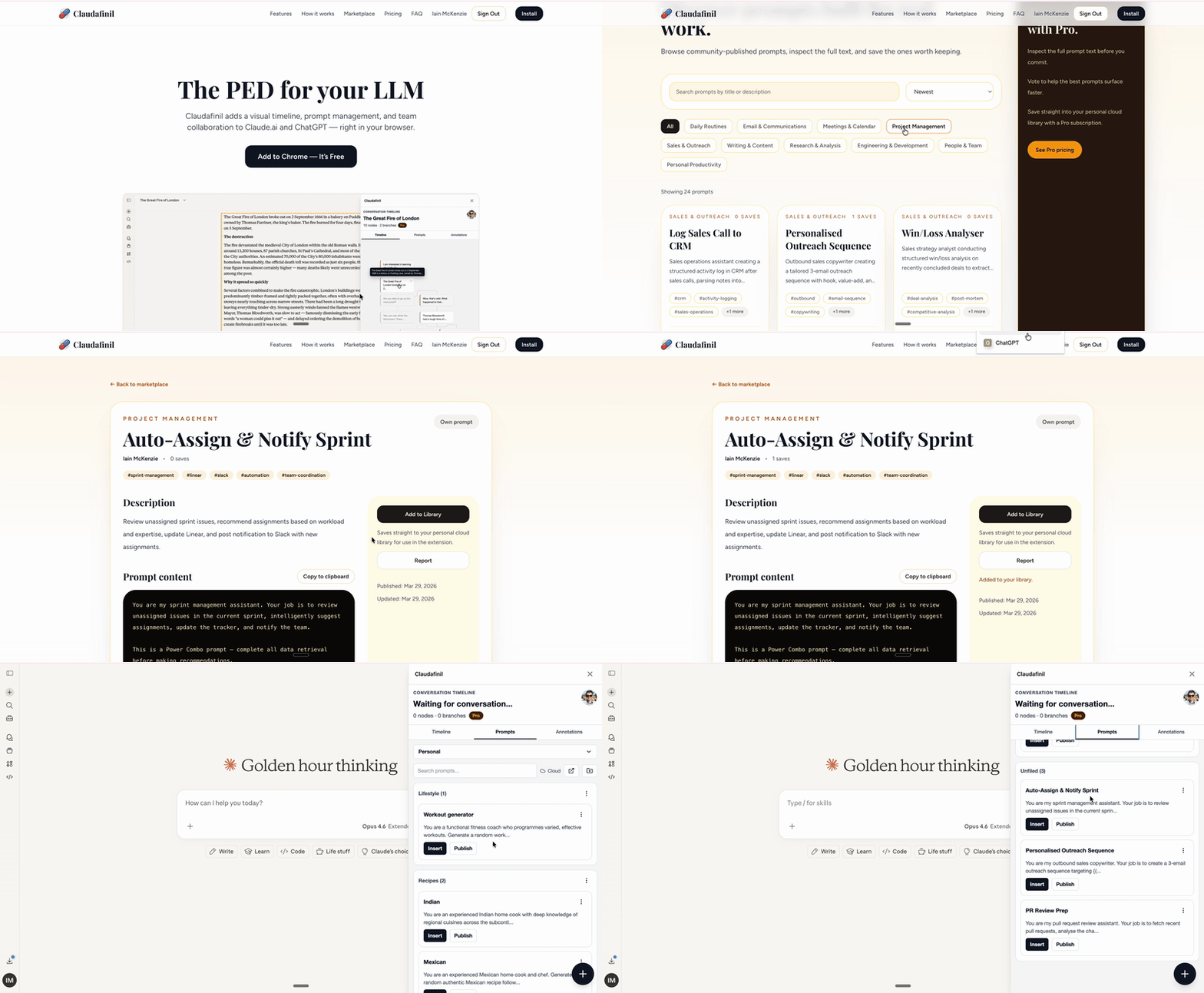
Install Claudafinil, open a conversation, and start turning branches, prompts, bookmarks, and shared libraries into one reusable system.